
How to Download a YouTube Transcript as TXT or SRT
Download a YouTube transcript as TXT or SRT with AnyScript. Follow a real example, choose the right file, and explore the same video’s hook and structure.
On this page
To download a YouTube transcript, paste the public video link into AnyScript’s YouTube transcript downloader. Open the result, find Transcription, then choose Download → Download as .txt or Download as .srt. Use TXT for reading and notes; use SRT when you need timed captions.
AnyScript keeps the video beside its timestamped text, so you can return to the sentence you are saving. You can also study the video’s hook and structure in that result, which is useful when the transcript is a reference for your own content.
See where to download TXT and SRT in AnyScript, followed by a look at the tutorial’s structure.
Can't play the YouTube video? Watch it here.
Watch this walkthrough on YouTube.
1. Get the transcript from the YouTube link
Start with an individual public video you can open and play. This example uses our 2:24 YouTube Shorts tutorial:
https://www.youtube.com/watch?v=lrnUOiuXTYgPaste the link into the downloader and choose Get Transcript. Follow any sign-in or usage prompt. If you already have the completed result, open it directly.
We obtained the tutorial’s TXT and SRT files on October 27, 2026. The example below follows those files, from the opening question through the closing instruction.
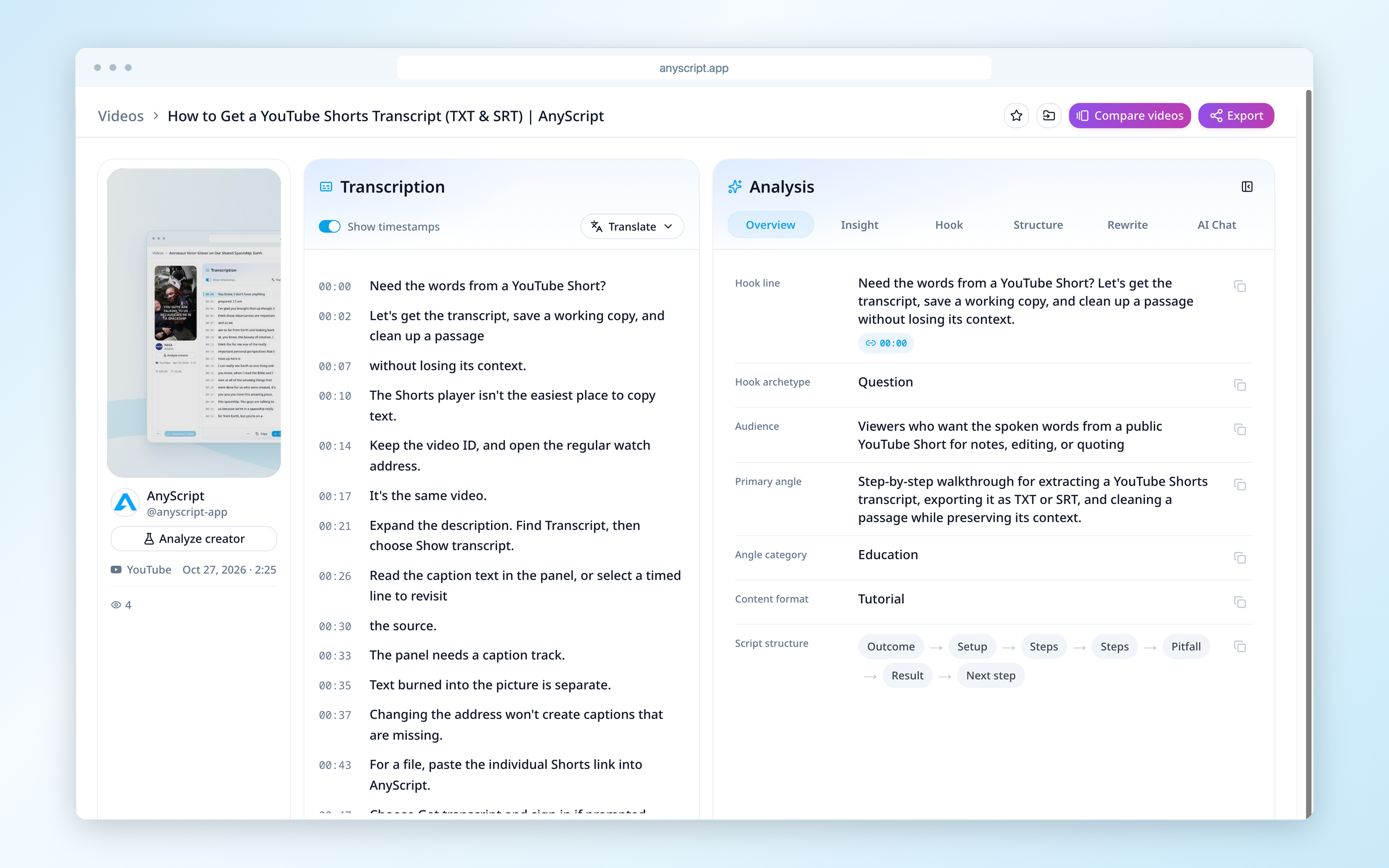
Copy and Download sit beneath Transcription. Analysis has its own controls on the right.
2. Choose TXT or SRT in the download menu
Open Download beneath Transcription, then select the format you need. The separate analysis export controls are for the analysis, so use the transcript’s menu for the spoken words.
| What you want to do | Choose | What the file contains |
|---|---|---|
| Read, search or collect the words in a document | Download as .txt | Plain text with line timestamps |
| Add a caption track to the original video | Download as .srt | Numbered subtitle blocks with start and end times |
| Copy a short passage without making a file | Copy | Clipboard text; Show timestamps controls its time markers |
Both downloads are text files, but they serve different destinations. Renaming a TXT file to .srt will not create the timing that a subtitle player needs.
3. Open the downloaded transcript
Open the file from your browser’s downloads in a plain-text editor. The TXT from our example begins:
[00:00] Need the words from a YouTube Short?
[00:02] Let's get the transcript, save a working copy, and clean up a passage
[00:07] without losing its context.
You can search the text, paste a passage into your notes, or use the timestamps to find it in the video. If you want continuous prose, join the lines in a separate copy.
The SRT from the same result begins:
1
00:00:00,650 --> 00:00:02,838
Need the words from a YouTube Short?

2
00:00:02,838 --> 00:00:07,031
Let's get the transcript, save a working copy, and clean up a passage
The arrow separates each caption’s start and end time. 00:00:02,838 means 2.838 seconds. Keep the numbers, arrow, commas and blank lines if you edit the file. The Library of Congress SRT description explains this structure.
An SRT opening as text is normal. To see it as captions, import it alongside the video in your player or editor. Check it with the same video version, especially if you have cut the opening or removed a section.
4. Use the transcript to understand the video
If you downloaded the words to learn from the video, stay in AnyScript and open Hook or Structure in Analysis. Hook examines the opening; Structure shows how the content progresses. Keep the transcript visible while reading those views.
For this tutorial, compare its opening question with the sequence of instructions that follows. That gives you both the words and a way to study how a practical tutorial is organized. Deeper analysis depends on your plan.
If the download is not what you expected
- TXT has timestamps: that is the text export format. For clipboard text, change Show timestamps before selecting Copy.
- Your editor rejects SRT: confirm that you downloaded SRT rather than renamed TXT, and preserve its numbered blocks and timing syntax.
- Captions do not match your edited video: use the subtitle file for that cut, or adjust it in your subtitle editor and check playback.
- There is no transcript to save: return to the video link and result first. If YouTube’s panel is missing, the AnyScript route for a missing YouTube transcript explains what to try.
Download your YouTube transcript with AnyScript, then keep the file for reading or continue into the same video’s analysis. For another source, follow the TikTok, Instagram Reel or X / Twitter guide.