
YouTube Transcript Not Showing? Get Text with AnyScript
YouTube transcript not showing? Try the public link in AnyScript, copy or download the text, and examine its hook and structure in the same workspace.
On this page
When YouTube’s transcript is not showing, try the public video link in AnyScript’s YouTube transcript tool. Choose Get Transcript, open Transcription, then copy the text or download TXT/SRT. This gives you a separate place to read the words without first opening YouTube’s transcript panel.
The video still needs to be accessible. This route is useful when your task is to save a passage, keep a text file or study the video’s script. AnyScript places the source, timestamped text and video analysis together.
See the AnyScript link-to-text workflow, using our captioned tutorial as the example.
Can't play the YouTube video? Watch it here.
Watch this walkthrough on YouTube.
1. Copy the individual YouTube video link
Open the video itself and confirm that it plays. Copy its Share link or the browser address. Use one video’s URL rather than a channel or playlist overview.
The walkthrough uses our public 2:24 tutorial:
https://www.youtube.com/watch?v=lrnUOiuXTYgYou do not need to copy text from YouTube before submitting the link. A Shorts address can also identify a single video; the Shorts transcript guide covers its native layout when you want to try that route.
2. Get the transcript in AnyScript
Paste the URL into the YouTube tool and select Get Transcript. Follow any account or usage prompt, then open the completed result and find Transcription.
Check the source preview and opening sentence so you know you are reading the right video. Our tutorial’s returned text starts with “Need the words from a YouTube Short?” We also downloaded its TXT and SRT on October 27, 2026.
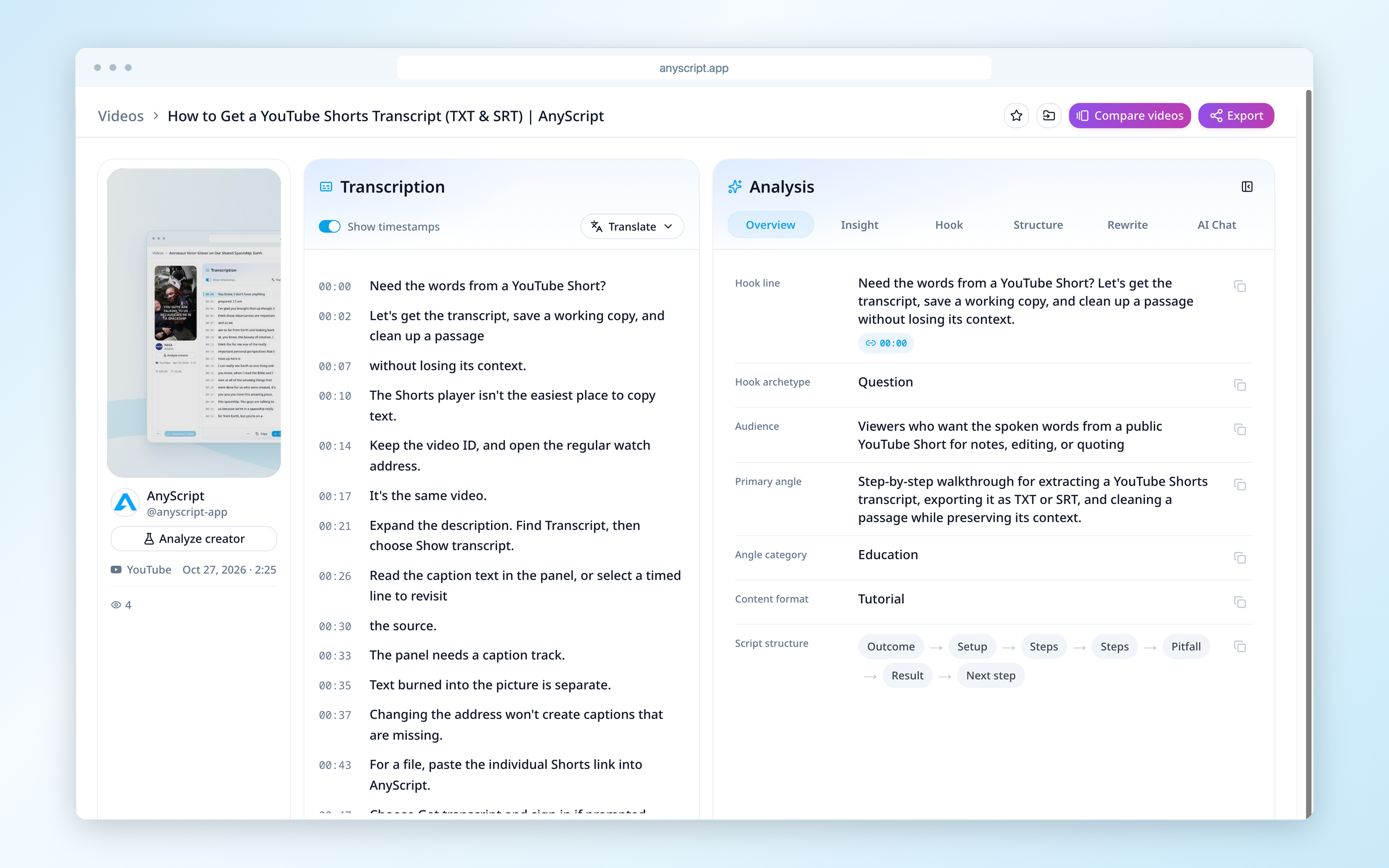
The words are available inside AnyScript, beside the source video. Copy and Download are below the transcript.
This example follows an actual result for a captioned public video. If the problem is missing audio or an inaccessible source, check the limits below before trying the same request again.
3. Copy a passage or download the file
For a quote or notes, choose Copy beneath Transcription. Use Show timestamps to decide whether the clipboard text includes time markers.
For a local file, choose Download → Download as .txt. Choose Download as .srt when you need timed captions, then check it with the video you will use. The YouTube transcript download guide shows both formats using the same tutorial.
This is a reason to use AnyScript even when YouTube’s panel is awkward to reach: you can work with the returned text and download it from the same result.
4. Study the hook and script structure
If you want to learn from the video, open Hook or Structure in Analysis. Hook examines how the video opens; Structure shows how its ideas and instructions unfold. Read those views beside the source and transcript.
For this tutorial, compare the opening question with the steps that follow it. You have the spoken words for reference and a way to examine how the explanation is organized. Deeper analysis depends on your plan.
Keeping the video, transcript and analysis together helps you study how the message is organized while retaining the words you want to use.
What if AnyScript cannot retrieve the video?
A missing Show transcript button and a missing source are different problems:
- The video is private, deleted or restricted: obtain access or an accessible original. Another text interface cannot bypass the source’s access requirements.
- No captions are offered: transcription needs usable captions or accessible speech audio. If the link returns no text, try a permitted audio or video file in a tool that accepts uploads, or ask the creator for a transcript.
- The returned text is partial: compare where it stops with the video and replay the missing passage before relying on it.
If you prefer YouTube’s native panel, its official instructions apply to captioned videos: open the regular watch page, expand the description and look for Show transcript. For your own upload without captions, check its subtitle status in YouTube Studio.
For a playable public video, try its link in AnyScript. Get the words first, then use the same workspace to explore its hook and structure.