
How to Get a TikTok Transcript and Download TXT
Get a TikTok transcript from a public link. Copy or download TXT with AnyScript, then examine the video’s hook and structure in the same workspace.
On this page
To get a TikTok transcript, copy the individual video's link, paste it into AnyScript's TikTok transcript tool, and click Get Transcript. Open Transcription in the result, then use Copy or Download → Download as .txt to save the spoken text.
Start with a public video you can open and play. This guide follows one real result through to a downloaded file, then covers short links, unavailable posts and videos with little or no speech.
Follow this TikTok example from its link to the transcript, TXT download and video analysis.
Can't play the YouTube video? Watch it here.
Watch this walkthrough on YouTube.
1. Copy the individual TikTok video link
Open the video you want. In TikTok, use Share → Copy link; in a browser, you can copy the address after opening that video. For this task, the address should identify one clip rather than a creator profile, a sound page or a search feed.
A full video address looks like this real example:
https://www.tiktok.com/@victoriaalese/video/7679260957268315423Mobile sharing may give you a shorter address, such as a vm.tiktok.com link. AnyScript recognizes TikTok share links. If one fails to resolve, open it in your browser and copy the resulting individual video address instead.
Check that the video plays and is the right clip before submitting. A repost or another video using the same sound can contain different speech.
2. Submit the link and open Transcription
Open the TikTok tool, paste your link into the video URL field and select Get Transcript. Follow any account or usage prompt shown on your screen.
When processing completes, open Transcription. Read the words in Transcription; the Analysis panel beside it helps you study the video after saving the text. Match the source preview and opening line to the clip you copied. If the page reports a partial result, that limit also applies to the text you export.
What the real result looks like
For @victoriaalese’s lighter video, the source is about 39 seconds long. Its transcript starts with “Look at how cute this lighter is.” The files below were downloaded from an existing result on October 27, 2026.
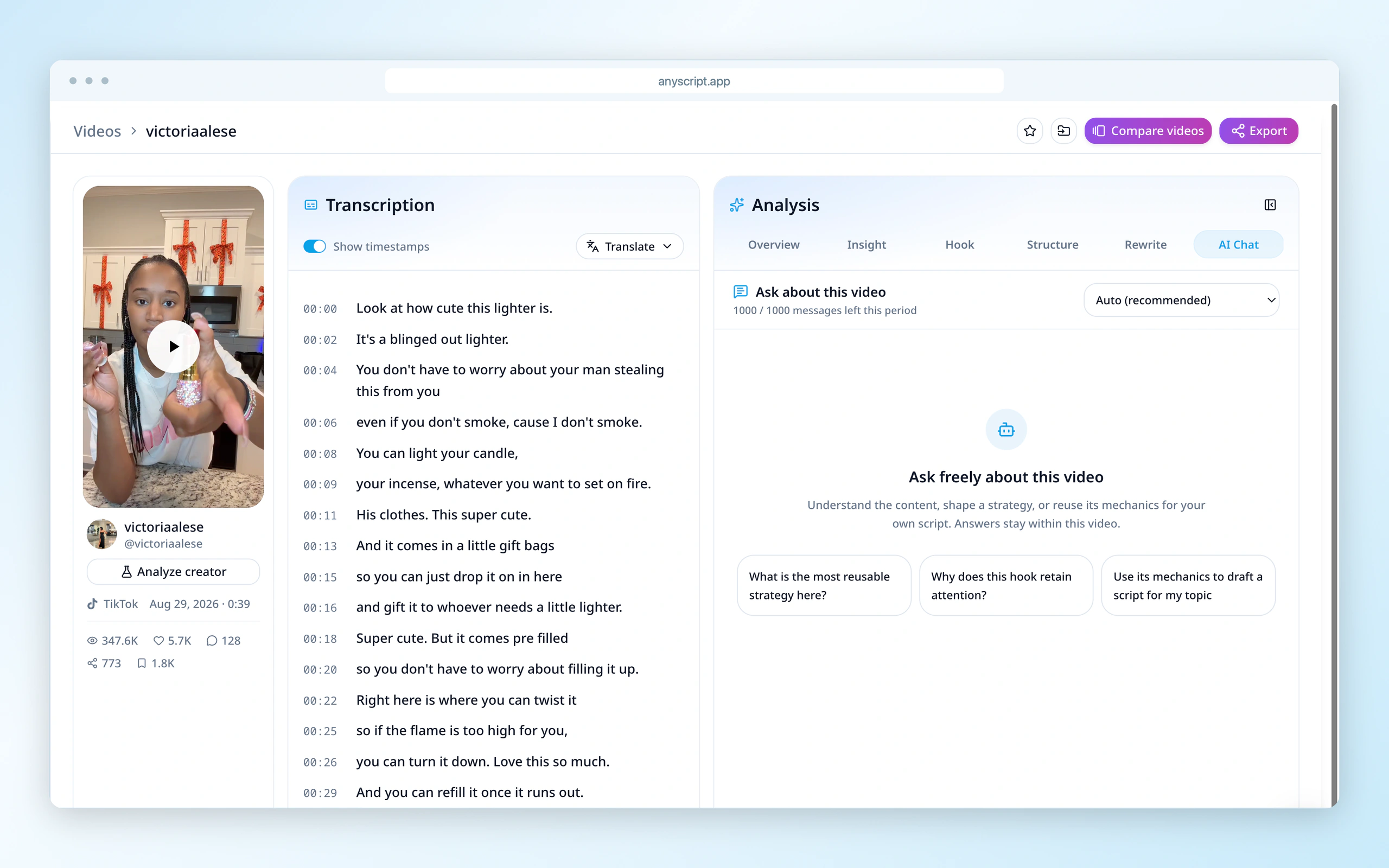
The source video and its transcript appear side by side.
The TXT file contains 22 timestamped lines, beginning at 00:00, with the final line starting at 00:38. Each timestamp tells you where that line begins in the video.
3. Copy the text or download a TXT file
Use the controls beneath Transcription:
- Select Copy to put the transcript on your clipboard.
- Paste it into your document or notes app. If you want time markers in the copied text, turn on Show timestamps before copying; turn it off for text without those markers.
- To save a file, select Download → Download as .txt.
- Open the downloaded
.txtfile to confirm that you saved the transcript you wanted. TXT downloads include line timestamps even when the copied version has them hidden.
For reading, searching or collecting a video's script, this completes the task. Before reusing an important sentence, replay it once, especially if it contains a name or number.
Optional: download subtitles instead
Choose Download as .srt when you need timed captions for a video editor. This TikTok’s SRT contains 22 captions. Import it with the same video cut and play it through to check the timing before use.
The TXT and SRT download guide explains format choices and subtitle timing problems in more detail.
4. Study the TikTok’s hook and structure
The transcript tells you what was said. To study how the clip was put together, stay on the same result and open Hook or Structure in Analysis. Hook examines the opening; Structure breaks the video into beats you can follow alongside the text.
For this lighter video, start with its opening line and look at how the product is introduced. You keep the source and the script together while collecting an idea for your own video. Deeper analysis depends on your plan.
If the TikTok transcript does not appear
| What happens | What to do next |
|---|---|
| The link opens a profile, sound page or feed | Open the specific video, then copy its own link. |
| A short share link fails | Open it in a browser and use the final video address. |
| The post is private, removed or unavailable | Find an accessible original or ask the creator for the text. Repeating the same request cannot restore a missing source. |
| You can watch, but the tool cannot fetch the video | Your logged-in TikTok access may differ from the tool's access. For a short passage, replay and type it manually. |
| The result is empty or much shorter than expected | Listen for speech. Music or words printed on the picture may provide little spoken text to transcribe. If there is speech, compare where the returned text stops. |
A visible caption switch is not a reliable test of external media access. TikTok's caption and accessibility features help viewers follow videos; an on-screen caption or text overlay is not automatically a downloadable transcript.
Common questions
Can I get the transcript without downloading the TikTok video first?
No local video file is needed. Paste the individual video link into the tool. If it cannot open the source, follow the access checks above.
Will the transcript include the large words printed on the video?
Treat this as a speech transcript. Text that appears only in the picture, the post description and hashtags may be different from what is said. If those words are what you need, read them from the source separately.
To save a clip's speech, paste its link into the TikTok transcript tool, then copy the returned text or save the TXT file.