
How to Get a Twitter Video Transcript (X) and Download TXT
Get a Twitter video transcript from an X post. Copy or download TXT with AnyScript, then use the same source to examine its hook and script structure.
On this page
To get a Twitter video transcript from an X post, open the post with the attached video and copy its individual link. Paste it into AnyScript's X / Twitter video transcript tool, select Get Transcript, then open Transcription. Use Copy to paste the words elsewhere, or Download → Download as .txt to save a text file.
The important input is the post that contains the video. A profile, a thread or a quote-post commenting on another clip can lead you to the wrong source. Here is how to choose the link, obtain the text and handle access failures.
Follow the NASA video post from its link to TXT, then look at how its message is organized.
Can't play the YouTube video? Watch it here.
Watch this walkthrough on YouTube.
1. Open the post containing the attached video
Open the video as an individual post before copying its link. A status URL identifies that post, as in the real NASA example used below:
https://x.com/NASA/status/2113776971603689874AnyScript recognizes individual status links on both x.com and twitter.com. An older Twitter address is not, by itself, a reason to change the link. Confirm that it resolves to the video you want.
There are three common starting points:
| What you opened | Which link to use |
|---|---|
| A post with its own attached video | That individual post's link |
| A quote-post showing another post's video | Open the quoted source post and copy its link |
| A preview linking to YouTube or another site | Open the actual video source and use the appropriate supported platform link |
Play the attached video once to confirm it contains the speech you need. This workflow covers a video attached to one post. Text-only posts, images and X Spaces require different workflows.
2. Submit the link and open Transcription
Paste the link into the X / Twitter tool's video URL field, then click Get Transcript. Follow any account or usage prompt shown.
When the result loads, open Transcription and match the source details to your post. The analysis panel is separate from the transcript. If a partial-result notice appears, the download should also be treated as a partial result.
What we obtained from a real X video
On October 27, 2026, we submitted NASA's public video post and downloaded both TXT and SRT. The source player reported 59.893 seconds, displayed as one minute in AnyScript. The TXT contains 16 timestamped lines, beginning at 00:00, with the last line starting at 00:59.
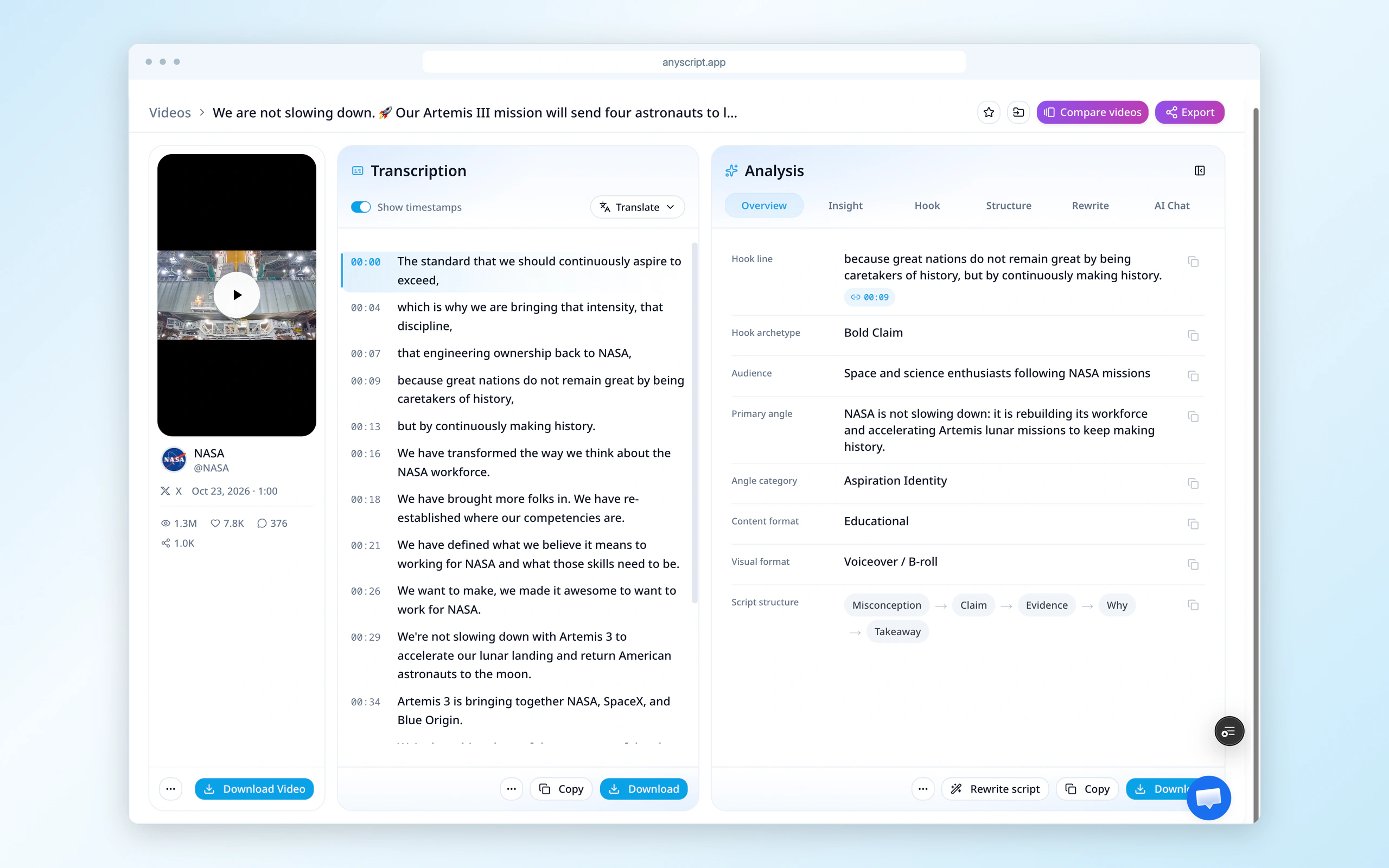
The returned transcript for the source linked above. Read the Transcription panel for the text; the right-hand analysis interprets the content.
The post copy starts “We are not slowing down.” The downloaded transcript starts “The standard that we should continuously aspire to exceed”. These two pieces of text serve different purposes: copying the post description will not give you the video’s speech.
3. Copy the words or download TXT
In Transcription, select Copy and paste into your document or notes app. Show timestamps controls whether the copied text includes line time markers. Choose the setting before copying.
For a local file:
- Select Download beneath the transcript.
- Choose Download as .txt.
- Open the downloaded file in a text editor and confirm that it contains the expected transcript. TXT exports include line timestamps.
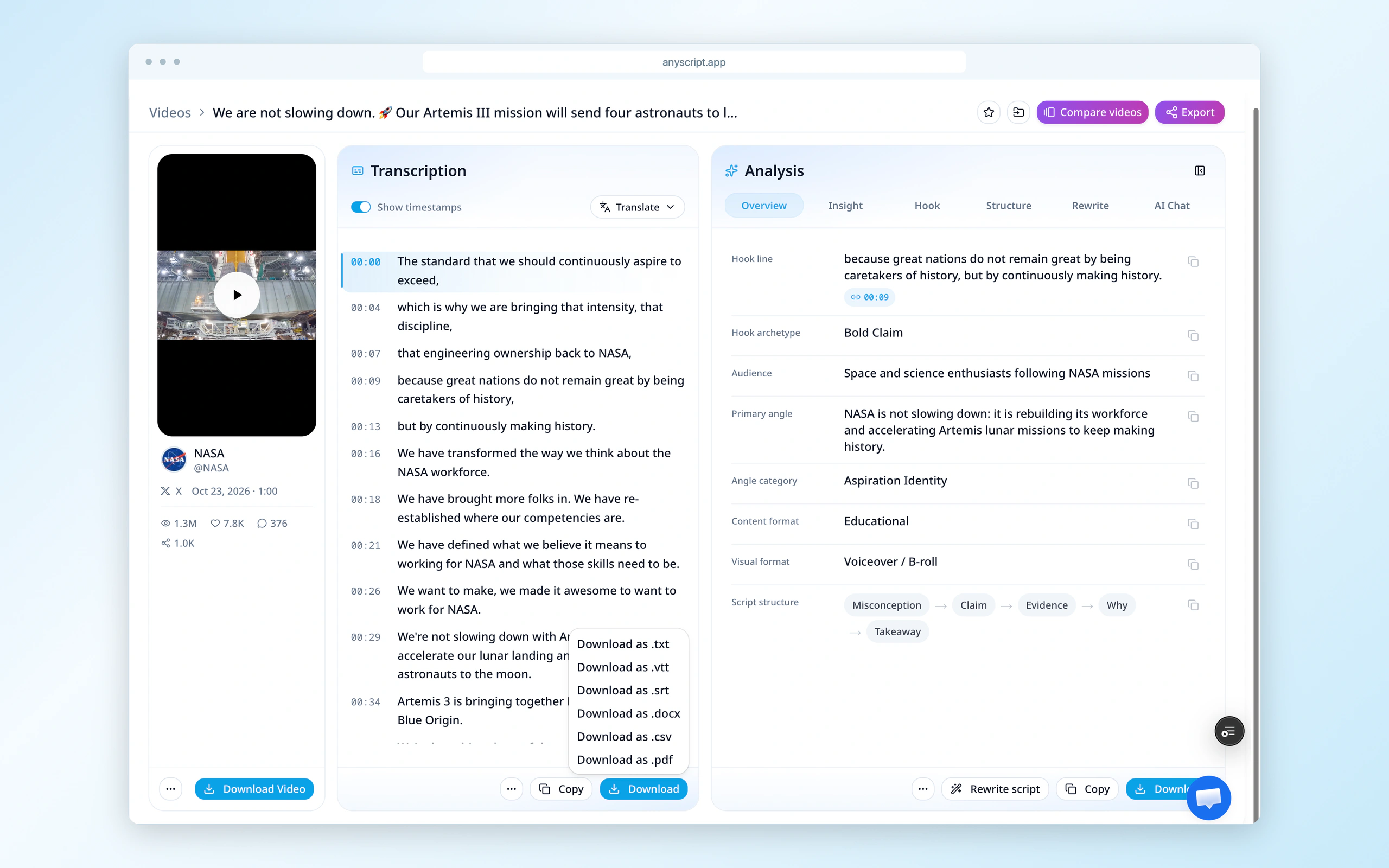
The Download menu for the same completed result. Select Download as .txt to save the spoken text as a document.
You now have the returned speech outside the result page. Replay important names or numbers before quoting them. If you need to return to the original post later, save its public link beside your notes.
A timing warning before choosing SRT
The NASA SRT download contains 16 cues, but its final cue runs from 59.000 to 88.979 seconds, beyond the 59.893-second source. Use TXT for the text task here. The original SRT needs its final cue checked and corrected before it can be used as subtitles.
If subtitles are your goal, choose Download as .srt, import it with the same video, and check the ending against the actual final speech. Shorten or remove the out-of-range cue as appropriate; shifting the whole file would change earlier timings unnecessarily. The TXT and SRT download guide covers format and timing checks separately.
4. Examine the video’s opening and structure
To study the communication behind a post, open Hook or Structure in Analysis after saving its transcript. Read the analysis alongside the same video’s words rather than treating the post description as the script.
For the NASA example, compare the opening statement with how the rest of the message develops it. This is useful when you want both an exact passage and a view of how a short announcement is organized. Deeper analysis depends on your plan.
If the X video link does not work
Check the source post first. Reopen the copied address. If it is a quote-post, open the underlying video post. If it contains only an image or an external preview, use the actual video source.
Separate your browser access from the tool's access. A post may play in your logged-in X session while a transcription service cannot retrieve the media. Repeating the request or changing x.com to twitter.com does not establish that access is available. For a short passage you can play, manually transcribe it; otherwise seek an accessible original or ask the owner for text.
Listen for speech if the result is empty. A music clip or silent animation may have no spoken words. Text in the post or printed on the video does not necessarily have a spoken equivalent.
Keep any coverage warning. If the returned text stops while the video continues speaking, it is incomplete for that passage. Use manual listening for the missing section rather than treating the post description as replacement speech.
Common questions
Can I use X's own captions instead?
If you only need to follow the video while watching, look for CC in the web player. X's official video help says captions are not available on every video. Playback captions can help with a short passage; the copy/download route above is for a separate text document.
Will this transcribe an entire thread?
This guide handles the video attached to one post. Open each relevant video post individually. A thread URL does not identify one combined audio recording.
Open the X / Twitter transcript tool with the attached-video post ready, then copy the result or download TXT.