
How to Get a YouTube Shorts Transcript: From Captions to a Clean Copy
Find the transcript behind a YouTube Short, copy a passage with its context, or download TXT and SRT. A real example shows what to keep and what to edit.
On this page
To get a YouTube Shorts transcript, open the Short as a regular YouTube watch page, expand the description, and look for Show transcript. If you need a file, paste the public Shorts link into AnyScript's Shorts transcript tool and download the text from Transcription → Download.
The part that causes confusion is the Shorts player. Captions can appear over the video without giving you a block of text to select. And a block of transcript text still isn't the same thing as a subtitle file you can put on a timeline.
This guide follows one Short through those differences: NASA's “Astronaut Victor Glover on Our Shared Spaceship: Earth”. You'll see how to find its native transcript, save the words, and turn a fragmented passage into a useful excerpt without changing what Glover said.
Choose the result you need
| What you need from the Short | Start here | What to keep |
|---|---|---|
| A sentence to read or quote | YouTube's transcript panel, when available | The wording, source link and time |
| The spoken script for notes or research | A downloadable TXT transcript | An untouched copy plus an edited reading copy |
| Timed captions for your own video edit | An SRT export | The cue times, followed by a playback check |
| Text that appears only in the picture | Check the actual frames | A separate visual note; a speech transcript may omit it |
If you only need a sentence, try YouTube first. If you need an editable document or timed file, go straight to the download workflow below.
Find the transcript behind the Shorts player
The Short and its regular watch page use the same video ID. For the NASA example, the two addresses are:
Shorts: https://www.youtube.com/shorts/yuT7iQC-yro
Watch:  https://www.youtube.com/watch?v=yuT7iQC-yro
Open the second address in a desktop browser. You're changing the way YouTube displays the video, not selecting a different recording.
- Expand the description beneath the video with more.
- Find the Transcript section and select Show transcript.
- Read the panel or select the passage you need. Click a timed line to return to that moment in the video.
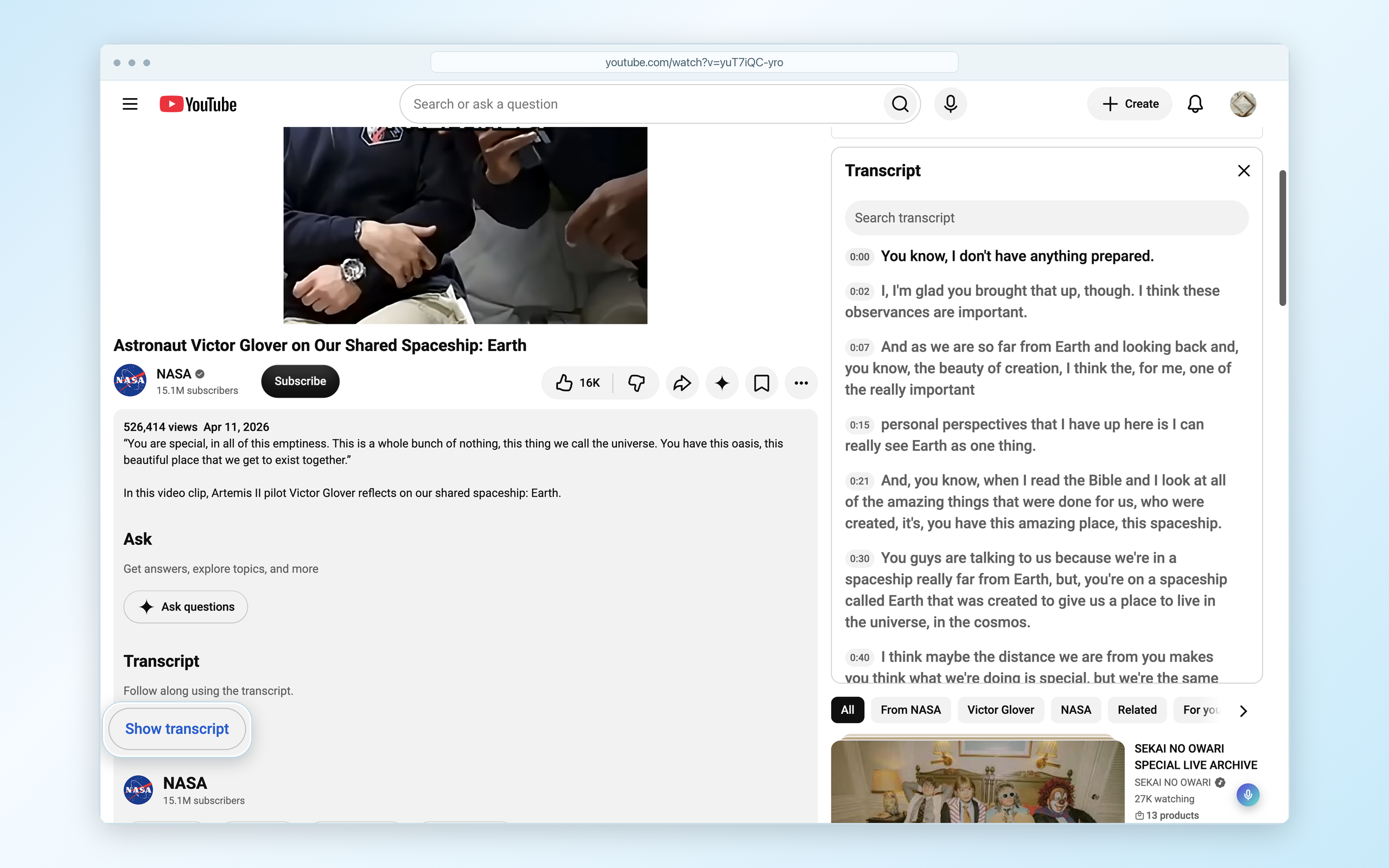
The source and transcript stay in view. The lens magnifies Show transcript in place, using pixels from the same English screenshot.
YouTube's instructions describe this panel for videos with captions. Changing a Shorts URL to a watch URL does not create captions or guarantee that the panel will appear.
Why the words on the video aren't enough
There are three things that can look like “the transcript” while you watch a Short:
- Closed captions are a timed text track you can toggle in the player.
- The transcript panel presents caption text in a form you can read and navigate.
- Text burned into the picture is part of the video image. It may be a shortened version of the speech, a headline, or something nobody says aloud.
That distinction matters when you are copying a script. A headline such as a product name or a numbered list can be essential to the Short without appearing in its spoken transcript. Keep those visual details in a separate note rather than inserting them into the speaker's words.
If Show transcript is missing, check the regular watch page once. YouTube says automatic captions can be delayed or affected by unclear audio, unsupported languages and overlapping speech. Its caption troubleshooting guide explains those cases. Repeatedly changing the URL won't repair a missing caption track.
Download the Shorts transcript with AnyScript
A file is useful when you want to search the whole script, compare passages or edit the wording in another app. Here's the route used for the same NASA Short.
1. Paste the link to the individual Short
Open the Shorts transcript tool and paste:
https://www.youtube.com/shorts/yuT7iQC-yroSelect Get transcript. You can use the /shorts/ address directly; the watch-page conversion above is for finding YouTube's own panel. If prompted, sign in to continue.
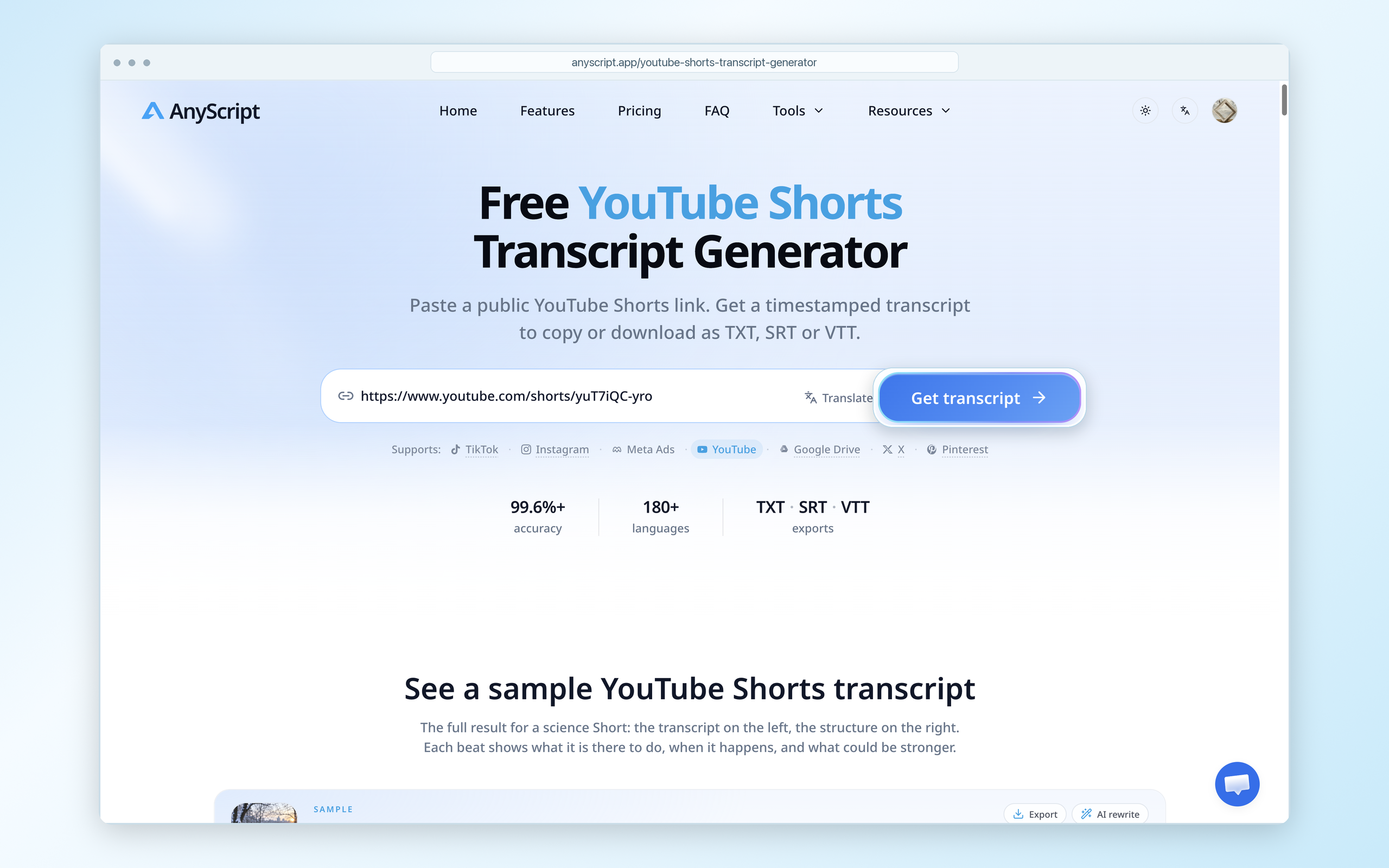
Use the link to the video itself. A channel page or a search-results URL doesn't identify this specific Short.
2. Keep timestamps while you review
In the result, find Transcription and turn on Show timestamps. The time beside a line gives you a place to return to when checking a name, a quote or a sentence split across several rows.
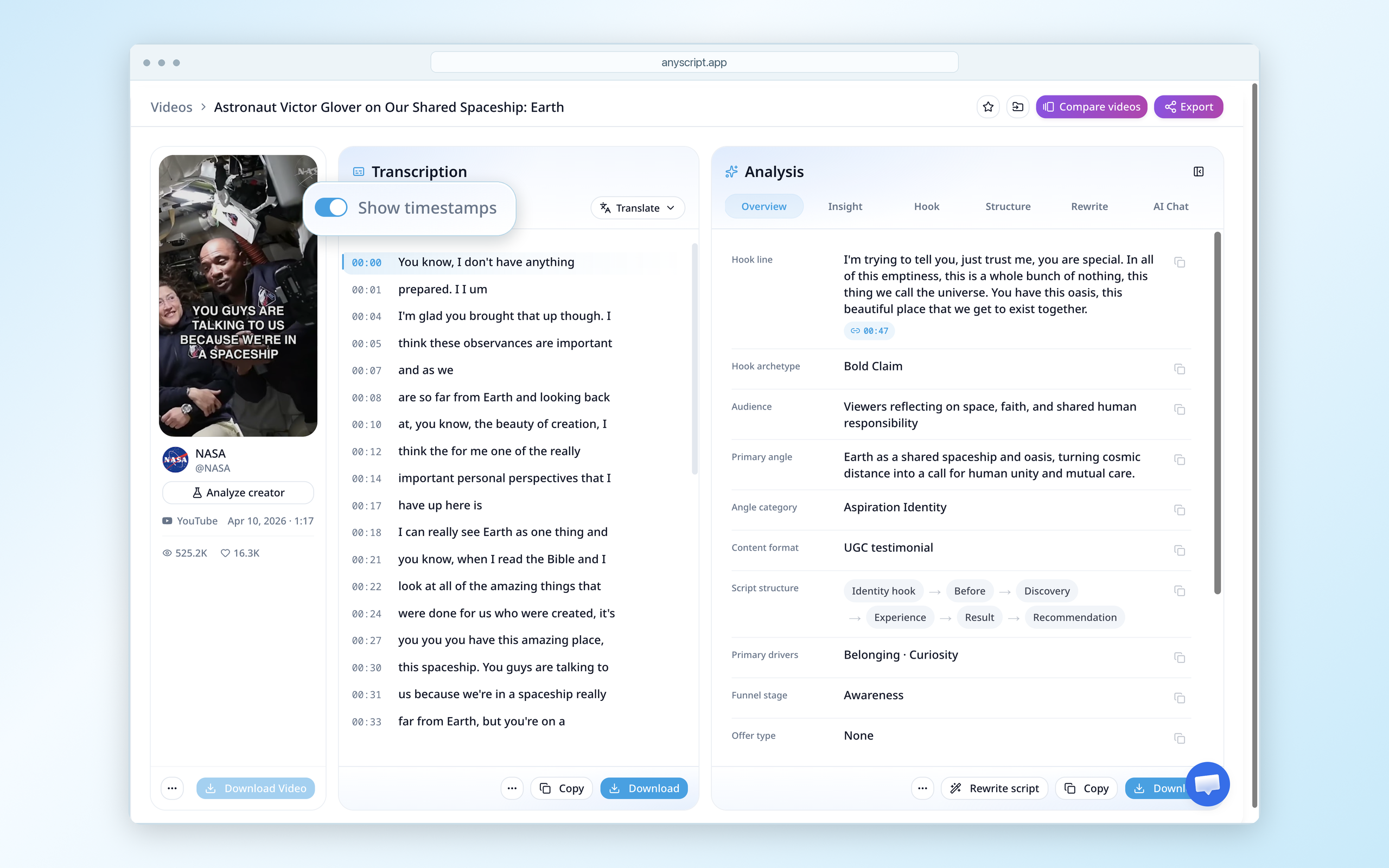
The opening is split into short fragments; 00:01 continues the thought above it. The lens magnifies the timestamp switch in place.
Don't treat each row as a complete sentence. YouTube's panel above puts the opening sentence in one timed entry; the downloaded TXT splits it across two. A different number of rows doesn't, by itself, mean words are missing. Copy enough surrounding text to understand the thought before you trim it.
3. Download the text or subtitle file
Use Download beneath Transcription. The result also has separate analysis controls; use the transcript's menu when you want the spoken words.
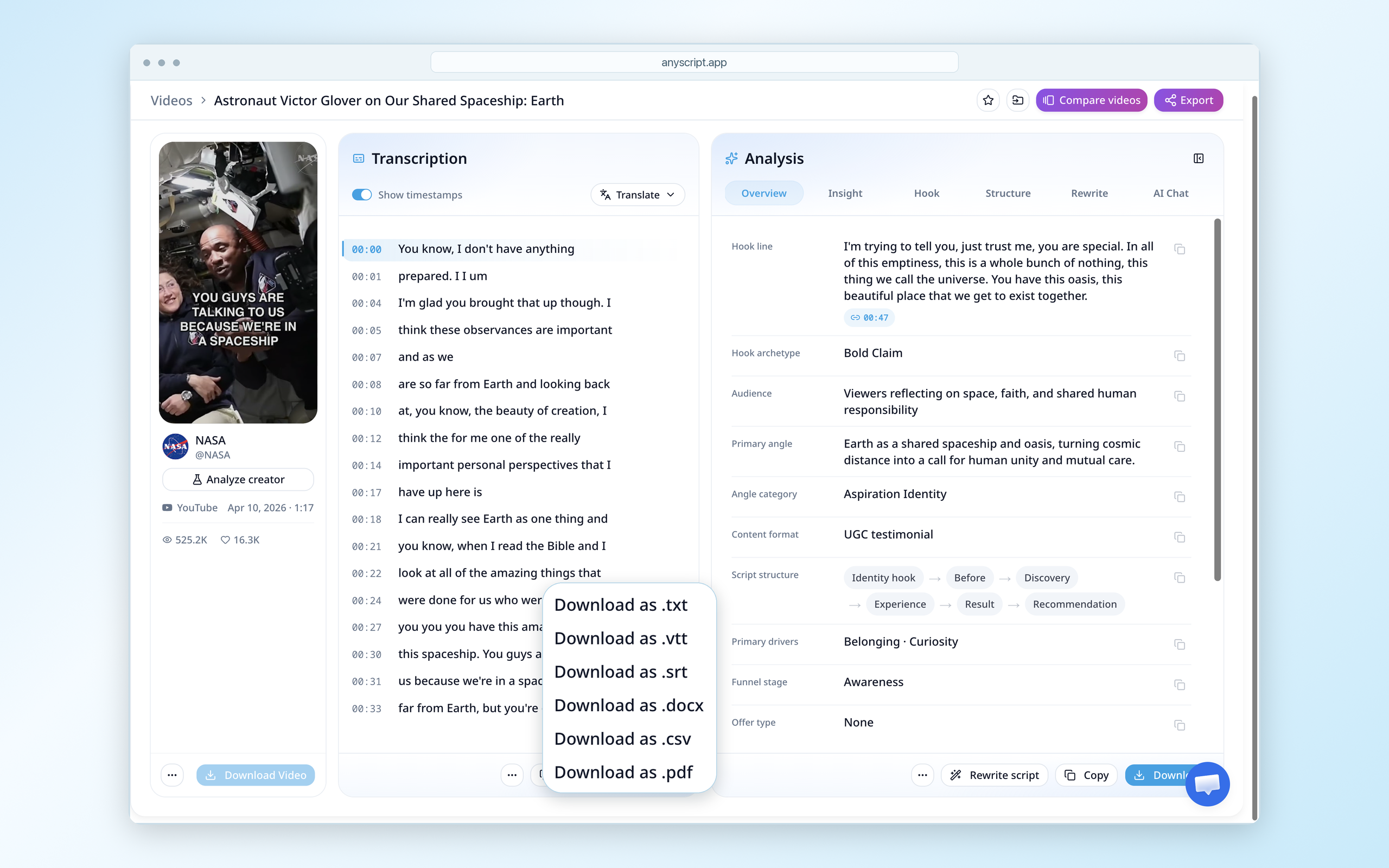
Choose TXT for a document you plan to read, search or edit. Choose SRT when you need subtitle cues with start and end times. The TXT downloaded for this example includes starting timestamps; the SRT includes numbered cues and time ranges.
Turn fragmented text into a usable excerpt
Getting a file solves access. It doesn't decide where a sentence begins, whether a line needs context, or how much editing a quote can tolerate.
Here's a passage from the actual downloaded TXT:
[00:30] this spaceship. You guys are talking to
[00:31] us because we're in a spaceship really
[00:33] far from Earth, but you're on a
[00:35] spaceship called Earth that was created
[00:38] to give us a place to live in the
[00:39] universe in the cosmos. I think
The first row finishes a previous thought before starting the sentence we want. The last row finishes that sentence and begins another. Copying whole rows would leave both loose ends in the excerpt.
Make a reading copy without inventing a new sentence
For a reading copy, remove the timestamps, join the fragments and adjust punctuation. The passage becomes:
You guys are talking to us because we're in a spaceship really far from Earth, but you're on a spaceship called Earth that was created to give us a place to live in the universe, in the cosmos.
Reading copy assembled from the transcript at approximately 00:30–00:39; punctuation added for readability.
The important word is but. It carries the comparison between the astronauts' spacecraft and the viewer's planet. Cutting the excerpt down to a few isolated phrases would lose the point even if every remaining word were transcribed correctly.
Before using this as an exact quotation, replay the full sentence and verify the words against the audio. A transcript is a route back to the passage, not independent proof that every word is right. Keep the original file so you can distinguish the returned text from your edits.
Save the position as well as the words
A useful research note for this Short could be:
| Field | Note from this example |
|---|---|
| Source | NASA — Astronaut Victor Glover on Our Shared Spaceship: Earth |
| Passage to revisit | Approximately 00:30–00:39 |
| Paraphrase | Glover compares the viewers' home planet to the spacecraft he is speaking from. |
| Context to retain | He has already described seeing Earth as one thing; the passage develops that idea. |
| Retrieval link | Open the watch page at 00:30 |
The paraphrase is an editorial note, not a quotation or an automatic AnyScript output.
Position also matters if you're collecting Shorts scripts to study their openings. This passage starts around thirty seconds in. It should not be filed as the Short's opening hook just because it is more memorable than the first line. A saved quote with no time attached makes that mistake easy.
Using the transcript as subtitles takes another check
TXT and SRT serve different jobs. In TXT, joining fragments makes the script easier to read. In SRT, the line breaks sit inside timed cues; changing the words alone won't fix how they appear during playback.
The SRT downloaded for this example on October 21, 2026 began with overlapping intervals:
Cue 1: 00:00:00,000 --> 00:00:04,360
Cue 2: 00:00:01,399 --> 00:00:05,639
The second cue starts before the first finishes. Import and preview the file before publishing captions. You may need to merge or retime those cues for the display you want.
There's another issue when you cut a Short into a smaller excerpt: the subtitle times still refer to the original video. As an editing example, if your new clip begins at exactly 00:30, an original cue at 00:35 belongs around 00:05 on the new timeline. An editor may handle that offset when you trim; otherwise, adjust it yourself. This is a timing example, not a tested import into a particular editor.
Keep a separate reading copy and caption file. The paragraph you cleaned for notes won't necessarily make good on-screen captions, and the short lines that work on a screen can be awkward to read as prose.
What if there is no usable transcript?
The video plays, but neither captions nor the panel appear. For a short passage, manually transcribe while replaying it. For a longer script, use a speech-transcription workflow that can access the audio. Don't assume a tool that only retrieves existing captions can fill the gap. The captioned example in this guide doesn't test that fallback.
The tool can't access the link. Confirm that you pasted an individual public video. A transcript workflow does not remove private-video, membership, age or region restrictions.
The transcript seems to skip an important point. Check whether the missing information was spoken or only shown on screen. Also check the source language: a translation may help you understand a passage, but it isn't the original-language wording to quote.
To save your own working copy, open the AnyScript Shorts tool, paste a public video link and download TXT. Keep the source link and timestamps beside any excerpt you decide to use.